
AI Object Remover: Paint Over What You Don't Want
Upload a photo, paint over the object you want gone, and the AI removes it and rebuilds the background behind it. Results usually take 30 to 60 seconds.
Upload Your Image
Drag and drop your image here, or click to browse
Supports PNG, JPG, JPEG, WebP (max 5MB)
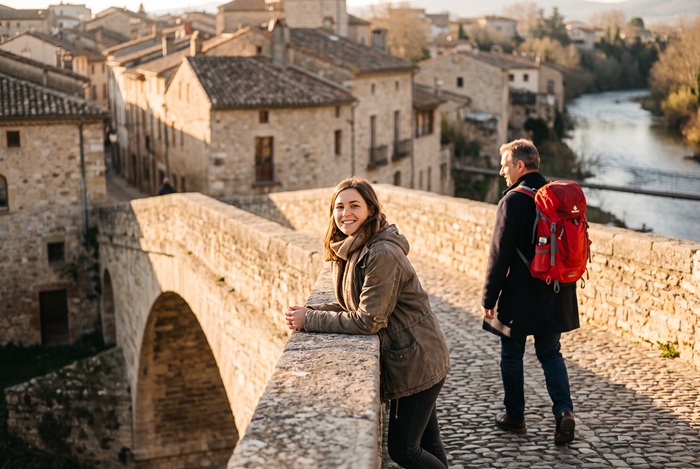 Original
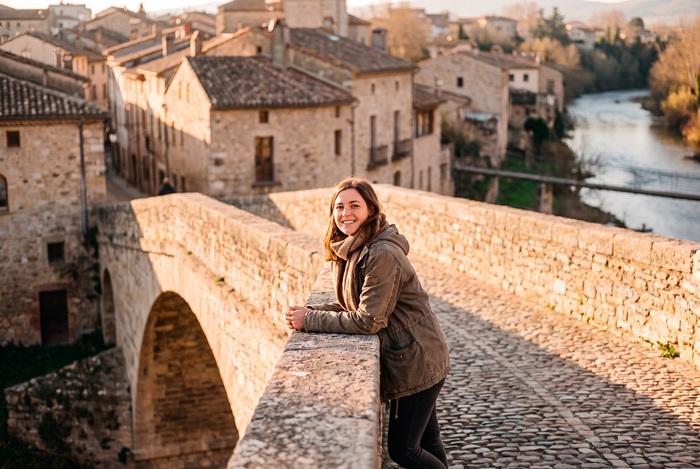 Removed
HOW IT WORKS
From cluttered photo to clean photo in three steps
There is nothing to install: the tool works in any browser, and the images are processed on our servers. You decide what goes, the model rebuilds what was behind it.
- 01
Upload your photo
Drag a PNG, JPG or WebP file onto the panel, or click to browse. Files up to 5MB are accepted, and the sharper the original, the cleaner the fill.
- 02
Paint over what you want gone
Brush over the object, its shadow and its reflection. The marks do not need to be precise, the model finds the edges itself. Adjust the brush size for small details, and undo or clear at any time.
- 03
Generate and download
Sign in and generate. Most results are ready in 30 to 60 seconds. Compare before and after with the slider, then download the full-quality file.
SAMPLES
What object removal looks like in practice
Each pair shows the original photo and the AI result side by side. Every result was produced from the original by the removal model, with no manual retouching.
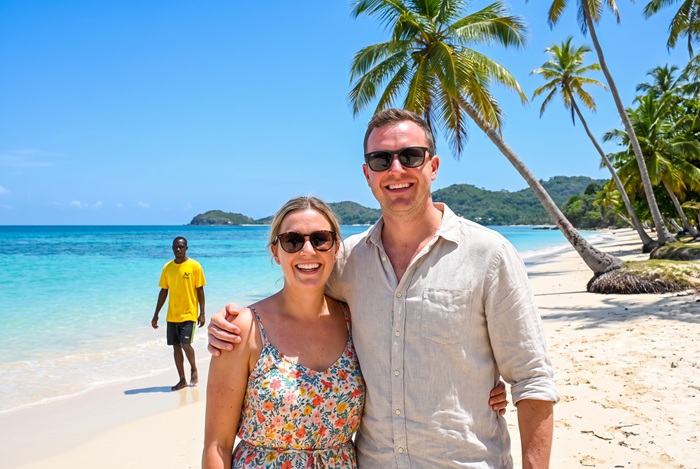 Original
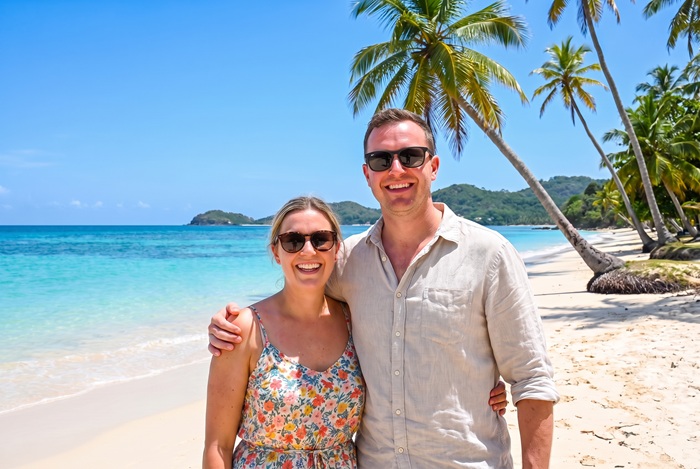 Removed
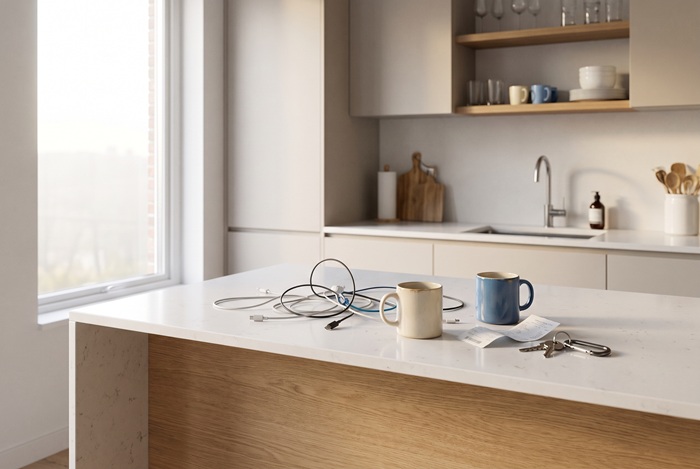 Original
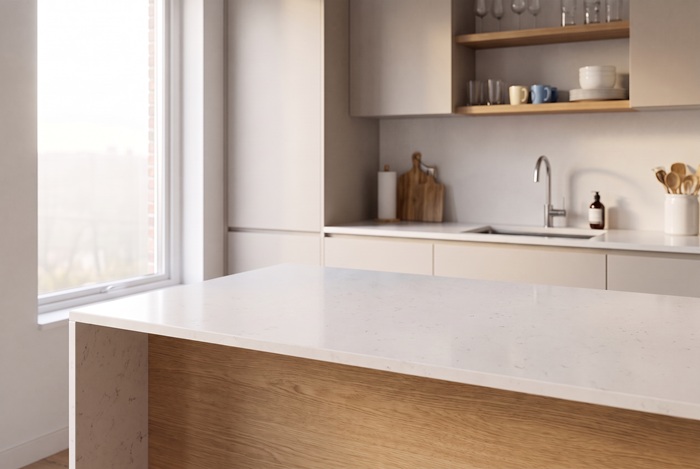 Removed
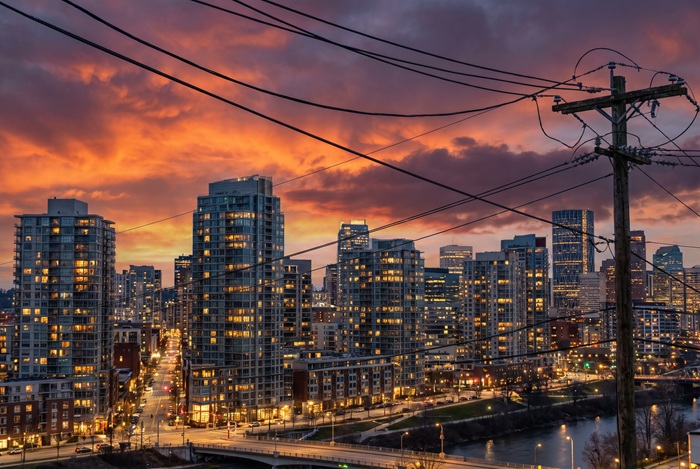 Original
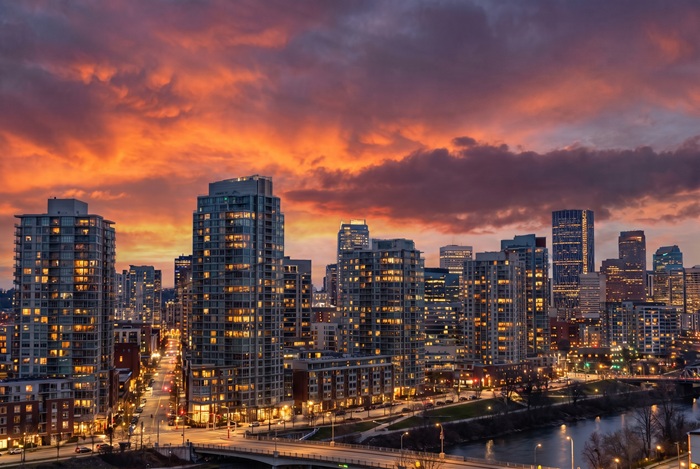 Removed
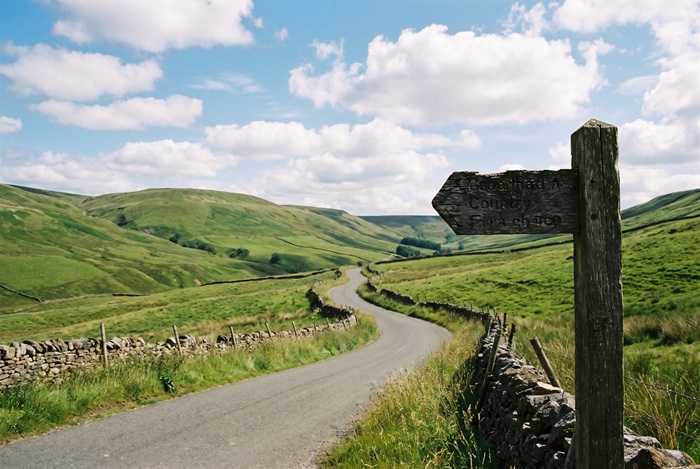 Original
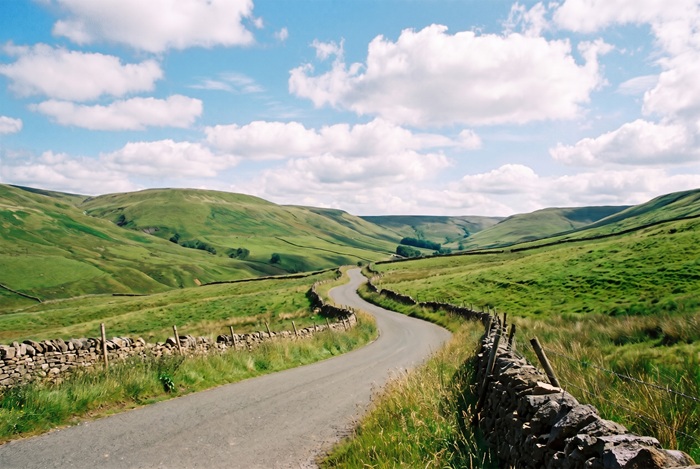 Removed
FEATURES
What the remover does for you
You mark what should go. Everything else, from edge detection to background reconstruction, is handled by the model.
Paint it, and it's gone
Paint a rough mark over the unwanted object and the model takes it from there: it finds the edges, removes the object and fills the gap. No lasso, no path tool, no selection skills needed.
A model for every removal
Some models produce the most faithful fills, others reach the highest resolutions, and some suit portraits and cinematic scenes. If one fill looks off, run the same marks through another model.
Output up to 4K
Depending on the model, results render at up to 4K, enough for large prints and tight crops. The selector only lists combinations the current model can deliver.
Full-quality downloads
The result in the comparison view is the actual file. The Download Image button saves the same full-resolution image, with no watermark.
Pay per result, refunded on failure
Each removal costs the credits shown before you click. If a run fails on our side, those credits return to your balance automatically.
Nothing to install
There is nothing to install or update. The page works in any modern browser, and the processing runs on our servers.
ABOUT OBJECT REMOVAL
What object removal is, and what this tool does with it
Almost every good photo has something in it you would rather not have: a stranger walking through the frame, a trash bin next to the bench, a power line crossing the sky. Cropping helps only when the distraction sits near an edge.
This tool works by marking. You paint over the object, and the annotated photo goes to a generative model. The model removes everything under the marks and invents new pixels for the gap, matching the texture, lighting and perspective of the surrounding area.
The fill is generated, not recovered. The model cannot know what was actually hidden behind the object, so it makes a plausible guess from context. Over sky, grass, water and walls the guess is usually convincing. Repeating patterns and large objects covering detailed areas are harder, and deserve a check at full size.
The cleanest results come from small to medium objects on relatively simple backgrounds. Two habits matter more than anything else: cover the entire object with a small margin, and mark its shadow and reflection too, otherwise the removed object leaves a ghost behind.
TIPS
Get cleaner removals from your marks
How you paint the marks matters more than which button you press.
- 01
Cover the whole object, then a little more
Marks that stop exactly at the edge tend to leave a faint outline. Extend the mark slightly past the object so the model has room to blend.
- 02
Don't forget shadows and reflections
Removing a person but leaving their shadow on the ground looks stranger than leaving the person. Paint over the shadow, the reflection and anything the object touches.
- 03
One object at a time in busy scenes
When several objects sit on a complicated background, removing them in separate passes usually gives cleaner fills than marking everything at once.
- 04
Match the resolution to the destination
2K covers websites and social feeds. If the image is headed for print or a large display, switch to a model that offers 3K or 4K.
- 05
If the fill looks off, change the model, not the mark
Each model guesses differently. Before repainting your marks, try the same annotation with another model; it often fixes a strange fill on the first retry.
- 06
Start with the least-compressed original
Photos saved from messaging apps lose texture the model could have used for the fill. The file straight out of the camera or phone gives the best result.
FAQ
Frequently asked questions
Which image formats can I upload?
PNG, JPG, JPEG and WebP up to 5MB. Output is PNG or JPEG, and the exact options depend on the model. Whatever the format, a less compressed original gives the model more texture to work with.
How precise does my marking need to be?
Rough is fine. Cover the whole object with a small margin and the model finds the edges itself. What matters is the opposite direction: anything left outside the mark stays in the photo, so include the shadow and the edges.
Will the rest of my photo stay the same?
The unmarked area is meant to stay as it is, and in most photos it does. Because a generative model produces the result, small shifts can happen, so check the full-size result before printing or publishing.
Can I remove a person from a photo?
Yes. Passersby and photobombers are the most common case. As with everything you edit here, use photos you have the rights to; our Terms of Service cover what is allowed.
How much does one generation cost?
Each removal costs credits, and the exact amount appears next to the Remove Object button before you click, together with your remaining balance. New accounts receive free credits, and the daily check-in adds more — together they cover your first run.
What happens if a generation fails?
A failed run costs nothing: if the failure is on our side, the credits go back to your balance automatically. There is no form to fill and no support ticket to open.
Does the downloaded image have a watermark?
No. Previews and downloads are the same full-resolution file, and neither carries a watermark.
Are my uploaded photos private?
Photos you upload are processed to deliver and improve the service, and they are never made public. Storage and retention details are in our Privacy Policy.
Can I create NSFW or adult content on this site?
No. Generating or editing NSFW, sexually explicit, or adult content is strictly prohibited on this site, as stated in our Terms of Service. Accounts that violate this policy may be suspended or terminated.
OBJECT REMOVER MEMBERSHIP
A steady allowance for removing objects
A membership refills your credits every period, so object removal keeps working between packs. One subscription covers this and every other tool.
Membership
Recommended
Standard Membership
1,000credits/month
$4.99/month
≈ 333 images
≈ 35 flagship images
For weekly creators and side projects.
What's included
Fresh credits every period New credits land at the start of each billing period.
Credits last while you're a member Unused credits stay on your balance while the membership is active and expire when it ends.
Every tool, one balance Image and video tools draw from the same credit balance.
Commercial use included Generated images and videos are yours to use in commercial projects, within our terms.
8+ image models, 5+ video models Nano Banana, FLUX, GPT Image, Seedream, Seedance and more, all on the same balance.
Manage it from this page Upgrade or cancel right here, without emailing support.
No lock-in · cancel any time
Membership
Pro Membership
5,000credits/month
$19.99/month
≈ 1,666 images
≈ 178 flagship images
For daily image and video production.
What's included
Fresh credits every period New credits land at the start of each billing period.
Credits last while you're a member Unused credits stay on your balance while the membership is active and expire when it ends.
Every tool, one balance Image and video tools draw from the same credit balance.
Commercial use included Generated images and videos are yours to use in commercial projects, within our terms.
8+ image models, 5+ video models Nano Banana, FLUX, GPT Image, Seedream, Seedance and more, all on the same balance.
Manage it from this page Upgrade or cancel right here, without emailing support.
No lock-in · cancel any time
Credits stay valid while your membership is active; unused membership credits expire when the membership ends.
PRICING
Clean up more photos
Credits are shared across all tools, so the same balance covers every object you remove. Buy a one-time pack or subscribe, and credits stay in your account while it is active.
One-time pack
Starter Pack
100credits
$1.99
≈ 33 images
≈ 3 flagship images
A quick test run.
One payment · never expires
One-time pack
Basic Pack
300credits
$4.99
≈ 100 images
≈ 10 flagship images
A week of thumbnails, touch-ups and short videos.
One payment · never expires
One-time pack
Most popular
Standard Pack
700credits
$9.99
≈ 233 images
≈ 25 flagship images
A full set of images for a launch, plus the videos that go with it.
One payment · never expires
One-time pack
Pro Pack
1,600credits
$19.99
≈ 533 images
≈ 57 flagship images
Batch season. Whole catalogs and the videos that sell them.
One payment · never expires